This post shows how to build a macOS Quick Action (Finder right-click → Quick Actions) that will:
- Auto-orient the photo (no upside-down exports)
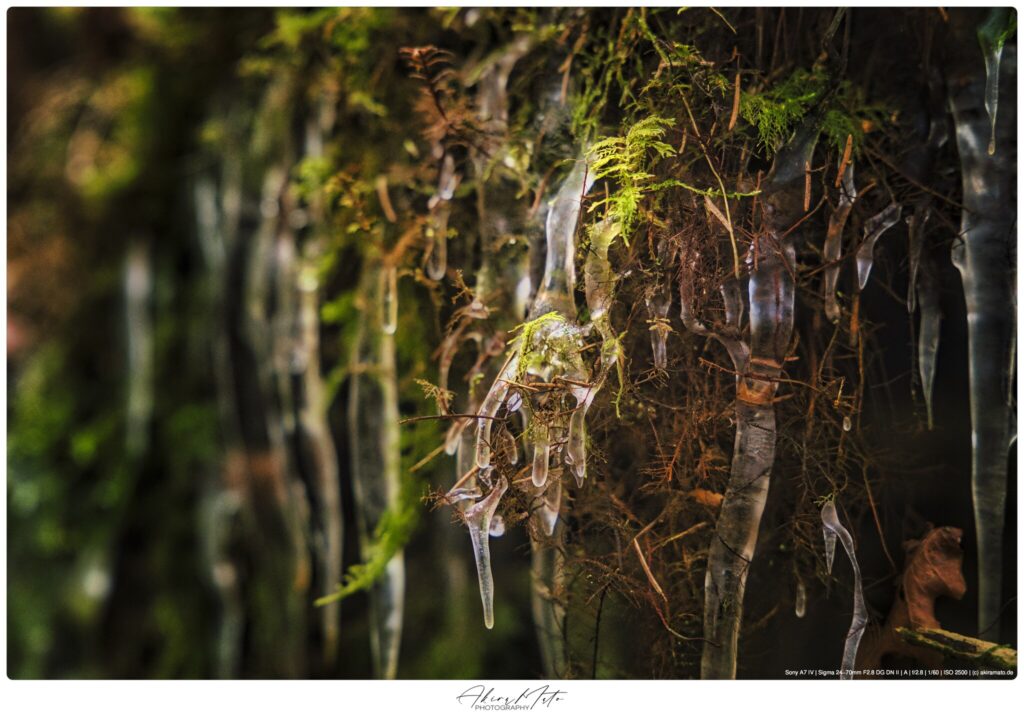
- Overlay key EXIF data in the bottom-right corner of the image
- Add rounded corners and a subtle 1 px inner stroke for separation
- Add a white frame around the photo with a larger bottom area
- Place your logo centered in the lower white area
- Resize the final output so the largest side is max 2048 px (keeps aspect ratio)
- Copy EXIF/IPTC/XMP + ICC profile back to the output
- Create a WEBP Version
This is designed for consistent, clean exports for Bluesky/Instagram and general web use.
The result looks like this:
Requirements
Install the required tools via Homebrew in bash:
Bash
brew install imagemagick exiftool ghostscriptVerify they exist:
Bash
/opt/homebrew/bin/magick -version
/opt/homebrew/bin/exiftool -ver
/opt/homebrew/bin/gs --versionIf you are on Intel Mac and Homebrew is in /usr/local, adjust paths in the script accordingly.
The Script (Zsh)
Save the following as a file (we’ll wire it into Automator in the next section).
Example path: ~/Scripts/akira_frame_quickaction.sh
Zsh
#!/bin/zsh
set -euo pipefail
# ------------------------------------------------------------
# FIX PATH FOR AUTOMATOR
# Automator runs with a minimal PATH, so Homebrew tools
# like ImageMagick, exiftool and ghostscript are not found
# unless we set this explicitly.
# ------------------------------------------------------------
export PATH="/opt/homebrew/bin:/usr/local/bin:/usr/bin:/bin:/usr/sbin:/sbin"
# ------------------------------------------------------------
# TOOL PATHS
# ------------------------------------------------------------
MAGICK="/opt/homebrew/bin/magick" # ImageMagick binary
EXIFTOOL="/opt/homebrew/bin/exiftool" # ExifTool binary
GS="/opt/homebrew/bin/gs" # Ghostscript (used internally by IM)
# ------------------------------------------------------------
# ASSETS
# ------------------------------------------------------------
LOGO="/Users/ma/Pictures/AkiraMato_Blog/logos/2.png"
# ------------------------------------------------------------
# FRAME DIMENSIONS (in pixels)
# White border around the image
# ------------------------------------------------------------
LEFT=30
RIGHT=30
TOP=30
BOTTOM=160 # bottom white area (logo + EXIF live here)
# ------------------------------------------------------------
# LOGO SETTINGS
# ------------------------------------------------------------
LOGO_PCT=18 # Logo width relative to image width (%)
SAFE_MARGIN=10 # Minimum distance from bottom frame edges
LOGO_VERTICAL_OFFSET=6 # Optical centering tweak (positive = move up)
# ------------------------------------------------------------
# IMAGE STYLE
# ------------------------------------------------------------
RADIUS=28 # Corner radius for rounded image corners
INNER_STROKE_COLOR="#636363"
INNER_STROKE_WIDTH=1
# ------------------------------------------------------------
# EXIF TEXT SETTINGS
# ------------------------------------------------------------
FONT_NAME="Helvetica" # Use ImageMagick built-in font (no FreeType dependency)
EXIF_MARGIN=18 # Distance from image edge (bottom-right)
STROKE_W=2 # Outline thickness for readability
PS_START=26 # Initial EXIF font size (auto-shrinks if too wide)
# ------------------------------------------------------------
# LOG FILE (useful for debugging Automator issues)
# ------------------------------------------------------------
LOG="/tmp/akira_frame_magick.log"
: > "$LOG"
# ------------------------------------------------------------
# MAIN LOOP
# Automator passes selected files as arguments ($@)
# ------------------------------------------------------------
for IMG in "$@"; do
echo "Processing: $IMG" >> "$LOG"
BASENAME="${IMG%.*}"
EXT="${IMG##*.}"
EXT_LC="$(echo "$EXT" | tr '[:upper:]' '[:lower:]')"
OUT="${BASENAME}_framed.${EXT_LC}"
# ----------------------------------------------------------
# READ IMAGE SIZE
# ----------------------------------------------------------
read W H <<< "$("$MAGICK" identify -format "%w %h" "$IMG")"
# ----------------------------------------------------------
# READ EXIF DATA
# ----------------------------------------------------------
MAKE="$("$EXIFTOOL" -s3 -Make "$IMG" 2>/dev/null || true)"
MODEL="$("$EXIFTOOL" -s3 -Model "$IMG" 2>/dev/null || true)"
LENSID="$("$EXIFTOOL" -s3 -LensID "$IMG" 2>/dev/null || true)"
# Fallbacks if LensID is missing
[ -z "$LENSID" ] && LENSID="$("$EXIFTOOL" -s3 -LensModel "$IMG" 2>/dev/null || true)"
[ -z "$LENSID" ] && LENSID="$("$EXIFTOOL" -s3 -Lens "$IMG" 2>/dev/null || true)"
FNUM="$("$EXIFTOOL" -s3 -FNumber "$IMG" 2>/dev/null || true)"
ISO="$("$EXIFTOOL" -s3 -ISO "$IMG" 2>/dev/null || true)"
EXPT="$("$EXIFTOOL" -s3 -ExposureTime "$IMG" 2>/dev/null || true)"
# ----------------------------------------------------------
# NORMALIZE CAMERA NAME
# ----------------------------------------------------------
CAM="${MAKE} ${MODEL}"
CAM="$(echo "$CAM" | sed -E 's/[[:space:]]+/ /g; s/^[[:space:]]+|[[:space:]]+$//g')"
[ "$MODEL" = "ILCE-7M4" ] && CAM="Sony A7 IV"
# ----------------------------------------------------------
# NORMALIZE EXPOSURE VALUES
# ----------------------------------------------------------
[ -z "$FNUM" ] && FNUM="?"
[ -z "$ISO" ] && ISO="?"
[ -z "$EXPT" ] && EXPT="?"
FSTR="f/${FNUM}"
# ----------------------------------------------------------
# FINAL METADATA STRING (ASCII ONLY!)
# Using "(c)" instead of "©" avoids encoding glitches in Automator.
# ----------------------------------------------------------
META="${CAM} | ${LENSID} | ${FSTR} | ${EXPT} | ISO ${ISO} | (c) akiramato.de"
META="$(echo "$META" | sed -E 's/[[:space:]]+/ /g; s/^[[:space:]]+|[[:space:]]+$//g')"
echo "META: $META" >> "$LOG"
# ----------------------------------------------------------
# AUTO-SCALE EXIF TEXT SIZE
# Limit width to max 1/3 of image width
# ----------------------------------------------------------
MAX_TEXT_W=$(( W / 3 ))
PS=$PS_START
while [ $PS -ge 10 ]; do
TW=$("$MAGICK" -background none \
-font "$FONT_NAME" -pointsize $PS \
label:"$META" -format "%w" info:)
if [ "$TW" -le "$MAX_TEXT_W" ]; then break; fi
PS=$((PS-1))
done
# ----------------------------------------------------------
# TEMP FILES (macOS-safe mktemp)
# ----------------------------------------------------------
TMP_EXIF="$(mktemp -t akira_exif).jpg"
TMP_TXT="$(mktemp -t akira_txt).png"
TMP_IMG="$(mktemp -t akira_img).png"
TMP_LOGO="$(mktemp -t akira_logo).png"
cleanup() { rm -f "$TMP_EXIF" "$TMP_TXT" "$TMP_IMG" "$TMP_LOGO"; }
trap cleanup EXIT
# ----------------------------------------------------------
# RENDER EXIF TEXT AS PNG (white text with black outline)
# ----------------------------------------------------------
export MAGICK_GHOSTSCRIPT_PATH="$GS"
export MAGICK_GS_PATH="$GS"
"$MAGICK" -background none \
-font "$FONT_NAME" -pointsize $PS \
-fill white -stroke black -strokewidth $STROKE_W \
label:"$META" "$TMP_TXT"
# ----------------------------------------------------------
# COMPOSITE EXIF TEXT INTO IMAGE (bottom-right)
# ----------------------------------------------------------
"$MAGICK" "$IMG" -auto-orient \
\( "$TMP_TXT" \) -gravity southeast -geometry +${EXIF_MARGIN}+${EXIF_MARGIN} -composite \
"$TMP_EXIF"
# ----------------------------------------------------------
# APPLY ROUNDED CORNERS + 1px INNER STROKE
# ----------------------------------------------------------
read W2 H2 <<< "$("$MAGICK" identify -format "%w %h" "$TMP_EXIF")"
"$MAGICK" "$TMP_EXIF" -alpha on \
\( -size "${W2}x${H2}" xc:none -fill white \
-draw "roundrectangle 0,0 $((W2-1)),$((H2-1)) ${RADIUS},${RADIUS}" \) \
-compose DstIn -composite \
-fill none -stroke "$INNER_STROKE_COLOR" -strokewidth "$INNER_STROKE_WIDTH" \
-draw "roundrectangle 0.5,0.5 $((W2-2)),$((H2-2)) ${RADIUS},${RADIUS}" \
"$TMP_IMG"
# ----------------------------------------------------------
# PREPARE LOGO
# ----------------------------------------------------------
LOGO_W=$((W2 * LOGO_PCT / 100))
[ "$LOGO_W" -lt 180 ] && LOGO_W=180
"$MAGICK" "$LOGO" -auto-orient -resize "${LOGO_W}x" "$TMP_LOGO"
LOGO_H="$("$MAGICK" identify -format "%h" "$TMP_LOGO")"
# Ensure logo fits into bottom frame
MAX_LOGO_H=$((BOTTOM - SAFE_MARGIN*2))
if [ "$LOGO_H" -gt "$MAX_LOGO_H" ]; then
LOGO_W=$((LOGO_W * MAX_LOGO_H / LOGO_H))
"$MAGICK" "$LOGO" -auto-orient -resize "${LOGO_W}x" "$TMP_LOGO"
LOGO_H="$("$MAGICK" identify -format "%h" "$TMP_LOGO")"
fi
# Center logo in bottom white area
NEW_W=$((W2 + LEFT + RIGHT))
NEW_H=$((H2 + TOP + BOTTOM))
LOGO_X=$(( (NEW_W - LOGO_W) / 2 ))
LOGO_Y=$(( TOP + H2 + (BOTTOM - LOGO_H)/2 - LOGO_VERTICAL_OFFSET ))
# ----------------------------------------------------------
# FINAL COMPOSITION + RESIZE FOR SOCIAL (max 2048px)
# ----------------------------------------------------------
"$MAGICK" -size "${NEW_W}x${NEW_H}" xc:white \
\( "$TMP_IMG" \) -geometry +${LEFT}+${TOP} -composite \
\( "$TMP_LOGO" \) -geometry +${LOGO_X}+${LOGO_Y} -composite \
-resize 2048x2048\> -quality 88 \
"$OUT"
# ----------------------------------------------------------
# COPY METADATA + ICC PROFILE BACK
# ----------------------------------------------------------
if [ -x "$EXIFTOOL" ]; then
"$EXIFTOOL" -overwrite_original \
-TagsFromFile "$IMG" -all:all -unsafe -icc_profile \
"$OUT" >/dev/null 2>&1
touch -r "$IMG" "$OUT"
fi
trap - EXIT
cleanup
doneMake it executable:
Bash
chmod +x ~/Scripts/akira_frame_quickaction.shHow To: Create a macOS Quick Action (Step by Step)
1) Open Automator
- Open Automator (Applications → Automator).
- Click New Document.
- Choose Quick Action.
2) Configure the Quick Action header
At the top of the workflow set:
- Workflow receives current: image files
- in: Finder
- (Optional) Uncheck “Output replaces selected files” if shown.
3) Add “Run Shell Script”
- In the left search box, type Run Shell Script
- Drag Run Shell Script into the workflow.
Configure it:
- Shell: /bin/zsh
- Pass input: as arguments
4) Paste the script call (recommended)
In the “Run Shell Script” box, do not paste the full script.
Instead, call your saved script:
Bash
~/Scripts/akira_frame_quickaction.sh "$@"This keeps Automator simple and makes updates easy (you only edit the .sh file later).
5) Save the Quick Action
- Press Cmd + S
- Name it something like: Akira Frame + EXIF
- Save.
6) Test it in Finder
- Go to Finder and select one or more images
- Right-click → Quick Actions
- Choose Akira Frame + EXIF
- New files will appear next to the originals, named like:
- photo_framed.jpg
7) If something fails: check the log
The workflow writes a debug log here:
Bash
cat /tmp/akira_frame_magick.logcat /tmp/akira_frame_magick.log
Customization
Change the bottom white area
Increase/decrease the bottom frame:
BOTTOM=160
Move the logo up/down in the bottom frame
LOGO_VERTICAL_OFFSET=6- Larger number → logo moves slightly up
- 0 → exact geometric center
Make EXIF text larger
Increase:
PS_START=26Change the final export size
Max side length is controlled here:
-resize 2048x2048\>Examples:
- 3072 px max: -resize 3072×3072\>
- 4096 px max: -resize 4096×4096\>
Notes / Troubleshooting
“magick” or “exiftool” not found (Automator only)
Automator does not inherit your terminal PATH. This is why the script sets:
export PATH="/opt/homebrew/bin:..."f your tools live somewhere else, update the paths at the top.
Text looks wrong / strange characters
Avoid Unicode symbols like © in Automator. The script uses (c) for reliability.
Troubleshooting: No EXIF Text Visible
If the framed image is created correctly but no EXIF text appears in the bottom-right corner, check the following:
1) Make sure the source file actually contains EXIF
Run:
Bash
/opt/homebrew/bin/exiftool -Model -LensID -FNumber -ISO -ExposureTime "yourfile.jpg"If values are empty, the file may have no EXIF (e.g., exported/optimized images, screenshots, some messengers).
2) Confirm the Quick Action is passing files “as arguments”
In Automator → Run Shell Script:
- Shell: /bin/zsh
- Pass input: as arguments
If “to stdin” is selected, $@ will be empty and the script won’t process the image properly.
3) Check that Homebrew tools are available inside Automator
Automator often runs with a minimal PATH. The script includes:
Bash
export PATH="/opt/homebrew/bin:/usr/local/bin:/usr/bin:/bin:/usr/sbin:/sbin"Verify the tools exist:
Bash
/opt/homebrew/bin/magick -version
/opt/homebrew/bin/exiftool -ver
/opt/homebrew/bin/gs --version4) Read the debug log
The script writes a log file that includes the generated EXIF string (META):
Bash
cat /tmp/akira_frame_magick.logIf you see META: but the text is still missing in the output image, the text rendering step failed.
5) Ensure Ghostscript is installed (required for some ImageMagick text operations)
Install (or reinstall):
Bash
brew install ghostscriptThen verify:
Bash
which gs
gs --version6) Avoid Unicode copyright symbols in Automator
Some Automator environments can mis-handle ©. The script uses ASCII:
(c) akiramato.de
If you changed it back to ©, switch to (c) again.
7) Increase margins if the text is outside the visible area
If your photo has bright edges or the overlay feels too close to the corner, increase:
Bash
EXIF_MARGIN=18Try EXIF_MARGIN=24 or EXIF_MARGIN=30.
Have Fun